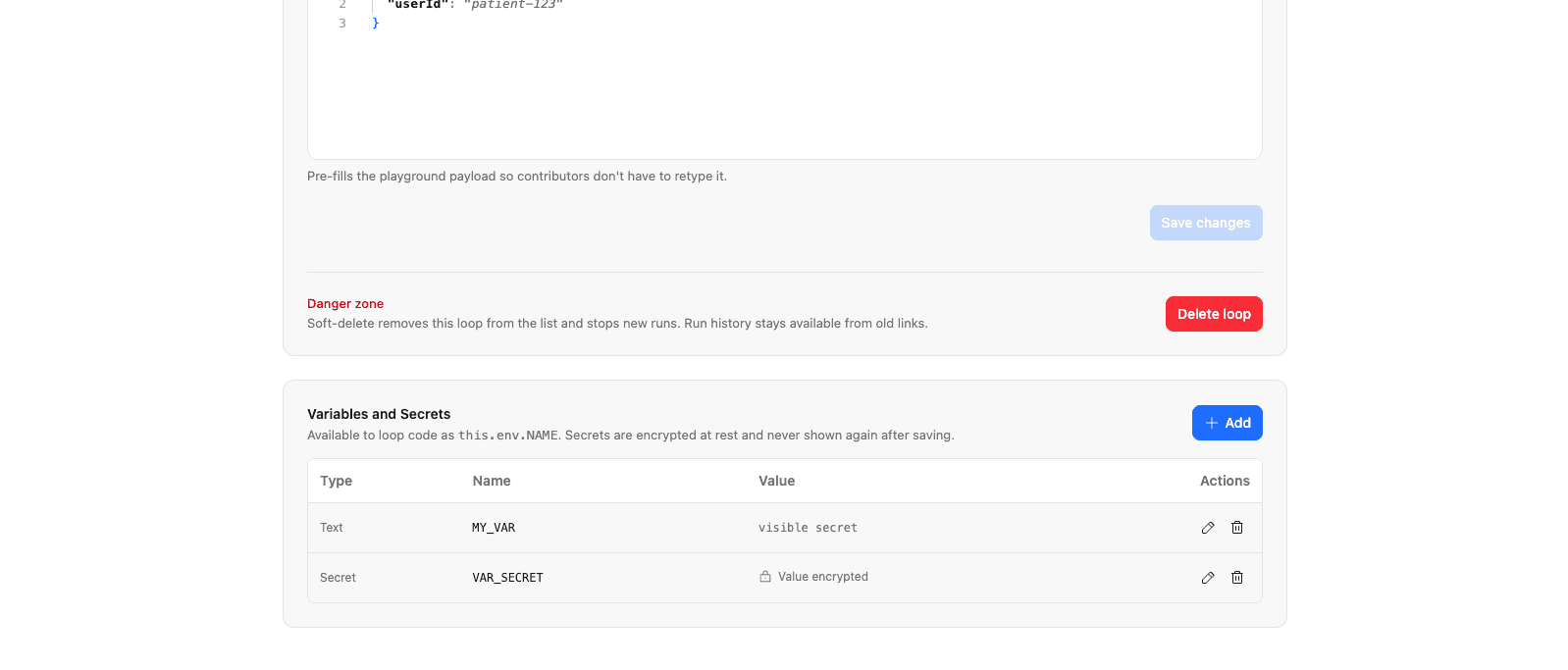
Variables and secrets
A variable is a named value attached to a loop, surfaced to your loop code as this.env.NAME. Use them for the things that shouldn’t be hard-coded into your loop — API keys, base URLs, feature flags, per-environment config.
There are two kinds:
- Text — plain configuration. Stored as-is and visible to anyone with dashboard access (e.g. an endpoint URL or a non-sensitive ID).
- Secret — credentials. Encrypted at rest and never shown again after you save them (e.g. an API key or signing secret).
This page covers how to add them, how to read them in a loop, and how they behave across deploys.
Where they live
Variables are scoped to the loop, not to a code version. That means you can change a value without redeploying — the new value takes effect on the loop’s next run. This matches the Cloudflare Workers model, where bindings are part of the deployment environment rather than the code.
Managing variables is a privileged action: only owners and admins can view or edit them. Regular members never see the list, and secret values never leave the worker in plaintext. See Invites and members for the role breakdown.
Add a variable
From a loop’s Settings → Variables and Secrets, click Add. The dialog asks for:
- A type — Text or Secret.
- A name — the identifier you’ll read in code. Names follow the Workers convention: start with a letter or underscore, then letters, digits, and underscores (so
this.env.NAMEis always valid). For example:API_KEY,BASE_URL,_internalFlag. - A value — the contents. Secret values are entered in a masked field.
A variable is unique by name within a loop. Adding one with an existing name overwrites the previous value.
Read it in your loop
Both text and secret values are decrypted and injected into your loop’s this.env at the start of each run. Read them the same way regardless of type:
export class HealthLoop extends Workflow {
  async run(event: HealthEvent, step: HealthStep) {
    await step.do("Call the partner API", async () => {
      await fetch(`${this.env.BASE_URL}/notify`, {
        method: "POST",
        headers: {
          // A secret — encrypted at rest, decrypted only at run time
          Authorization: `Bearer ${this.env.API_KEY}`,
        },
        body: JSON.stringify({ patientId: event.body.patientId }),
      });
    });
  }
}
Because values are resolved when the run starts, editing a variable affects the next run, not runs already in flight.
How secrets are protected
| Property | Text variable | Secret |
|---|---|---|
| At rest | Stored in plaintext | AES-GCM ciphertext |
| Shown in dashboard | Value is visible and editable | Only the name and type — the value reads “Value encrypted” |
| In loop code | this.env.NAME | this.env.NAME |
Secret values are never returned to the dashboard after they’re saved. The list shows the name and a lock icon; the value itself is unrecoverable through the UI. To change a secret you re-enter it — there’s no read-back.
The encryption key is derived from the platform’s signing secret, so there’s no separate key for you to manage. Rotating that platform secret invalidates all stored loop secrets — the intended blast radius — which is why secrets are re-entered rather than recovered.
Edit and delete
From the list, each row has an edit and a delete action:
- Edit a text variable — the current value is pre-filled, change it and save.
- Edit a secret — the value field starts empty; whatever you type replaces the stored secret. Leaving it as-is isn’t possible because the old value is never sent to the browser.
- Delete — removes the variable. The next run no longer sees
this.env.NAMEfor that name.
The name can’t be changed after creation — to rename, delete the variable and add it again under the new name.
Examples
Per-environment configuration
Keep environment-specific values in text variables so the same loop code runs against staging or production without edits:
| Name | Type | Value |
|---|---|---|
BASE_URL | Text | https://api.partner.com |
WEBHOOK_PATH | Text | /v2/inbound |
API_KEY | Secret | (the partner’s API key) |
Rotate a leaked credential
If a secret leaks, you don’t need to redeploy:
- Open Settings → Variables and Secrets.
- Edit the secret and paste the new value.
- The next run picks it up automatically — in-flight runs finish on the old value.